
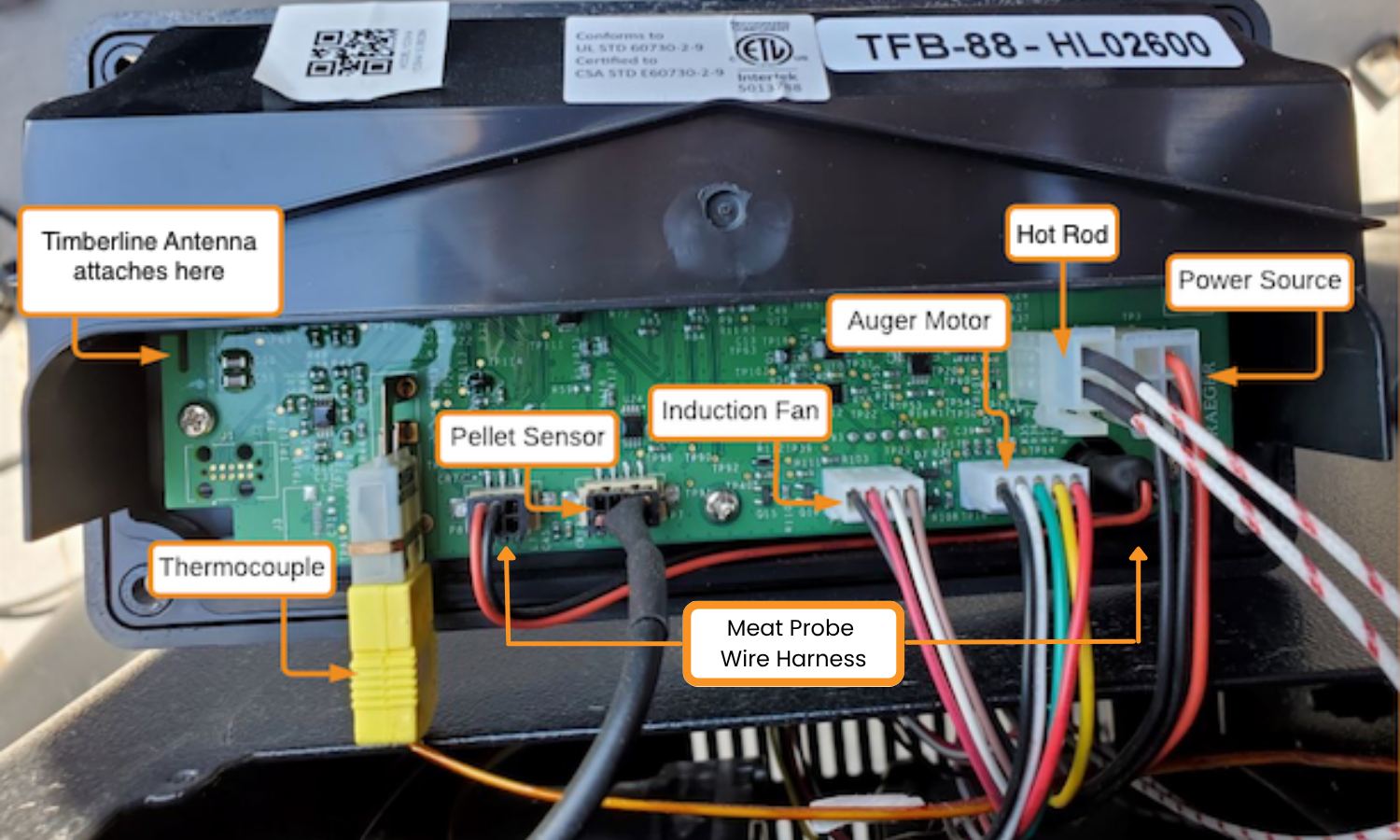
Are you having trouble connecting your pellet grill to WiFi? You’re not alone.
Many pellet grill owners find it tricky to check if their grill is properly connected to their home network. But getting this right is key to controlling your grill remotely and cooking your food perfectly every time. You’ll learn simple, clear steps to quickly check your WiFi connectivity on your pellet grill.
By the end, you’ll feel confident managing your grill’s connection and enjoying stress-free cooking. Keep reading to master your pellet grill’s WiFi in no time!
Setup Your Pellet Grill Wifi
Setting up your pellet grill’s WiFi is essential for controlling your cooking remotely and getting precise temperature updates. It lets you monitor your grill without constantly checking it, freeing you up to enjoy your time outdoors. Let’s walk through how to get your pellet grill connected to your home WiFi network smoothly and troubleshoot common issues along the way.
Locate Wifi Settings
Start by finding the WiFi settings on your pellet grill’s control panel or app. Most grills have a dedicated menu labeled “WiFi” or “Network Settings.” If you’re using a smartphone app, open it and look for options related to connectivity or setup.
If you can’t locate it, check your grill’s user manual or the manufacturer’s website. Some grills require you to press and hold a specific button to enter WiFi setup mode, so look out for that too.
Connect To Home Network
Once you’re in the WiFi settings, scan for available networks. Select your home WiFi network from the list. Then enter your WiFi password carefully—double-check for typos.
After connecting, your grill should confirm the connection with a message or indicator light. If it doesn’t, try restarting your grill and repeat the process. Make sure your phone or device is also connected to the same network to control the grill effectively.
Troubleshoot Connection Issues
If the connection fails, start by moving your grill closer to your WiFi router. Walls and metal objects can interfere with the signal. You might not realize that even a small obstruction can cause big connectivity problems.
Also, check if your router supports 2.4 GHz networks, as many pellet grills don’t work with 5 GHz. Resetting your grill’s WiFi settings and your router can clear out glitches that block connections.
Still stuck? Consider updating your grill’s firmware through the app or contacting customer support. Have you noticed any patterns when your grill drops connection? Pinpointing when it happens can help diagnose the root cause faster.
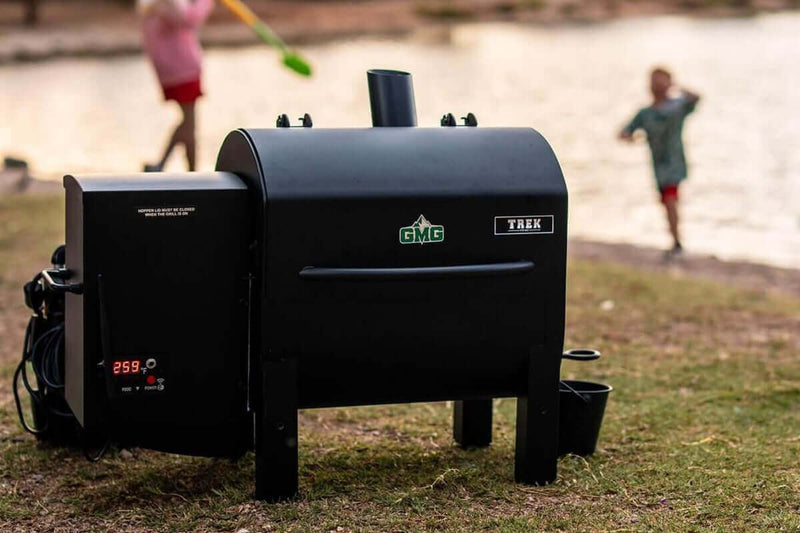
Credit: ddrbbqsupply.com
Test Wifi Signal Strength
Testing the WiFi signal strength on your pellet grill is essential to ensure smooth operation and reliable remote control. A weak signal can cause delays or disconnects, leaving you frustrated during your cookout. Knowing how to measure and boost your grill’s WiFi connection saves time and keeps your cooking on track.
Use Mobile Apps
Mobile apps designed for WiFi analysis are a quick way to check your grill’s signal strength. Apps like WiFi Analyzer (Android) or NetSpot (iOS) show signal quality in real-time and highlight dead zones.
Open the app and move around your grill area to see signal variations. This hands-on approach lets you find the best spot for your pellet grill’s WiFi or identify interference sources nearby.
Check Signal Bars On Grill
Most pellet grills with WiFi connectivity display signal bars directly on their control panel or app interface. These bars give an instant visual cue about the connection strength.
Pay attention to how many bars light up—fewer bars usually mean weaker signals. If your grill shows only one or two bars, expect slower response times or drops in connectivity during operation.
Improve Signal With Extenders
If you notice weak WiFi around your grill, consider adding a WiFi extender. Extenders increase your network’s reach, especially if your grill is far from the router.
- Place the extender halfway between your router and grill for best results.
- Use dual-band extenders to avoid signal congestion.
- Test the signal strength again after setup to confirm improvement.
Have you ever moved your grill just a few feet and suddenly had perfect WiFi? Small changes can make a big difference, and extenders help when moving isn’t an option.
Verify Grill App Connectivity
Verifying your pellet grill’s app connectivity ensures smooth control and monitoring. A strong connection helps manage temperature and cooking times easily. This section guides you through checking the grill app connection step-by-step.
Download Compatible App
Start by downloading the official app for your grill model. Check your grill’s manual or website to find the correct app name. Use the Apple App Store or Google Play Store to download it. Avoid third-party apps to prevent connection issues.
Sync Grill With App
Turn on your grill’s Wi-Fi or Bluetooth feature. Open the app and follow the on-screen instructions to pair the grill. Make sure your phone’s Bluetooth or Wi-Fi is active. Confirm the grill appears in the app’s device list before proceeding.
Control Grill Remotely
Once synced, test remote control features in the app. Adjust temperature settings and start or stop cooking from your phone. Check if the app updates grill status in real time. Reliable control confirms strong connectivity between devices.
Common Wifi Problems
Experiencing wifi issues on your pellet grill can be frustrating. Many users face common problems, which can affect grilling performance. Understanding these issues helps you enjoy uninterrupted grilling sessions. Here are some common wifi problems and solutions.
Reset Wifi Module
Resetting the wifi module can resolve connectivity issues. Turn off the grill and unplug it. Wait for a few minutes before plugging it back in. Turn the grill on and reconnect to the wifi network. This process refreshes the connection and often solves minor glitches.
Update Firmware
Outdated firmware can cause connectivity problems. Check the manufacturer’s website for updates. Download the latest firmware version for your grill model. Follow the instructions to install it properly. Updated firmware ensures compatibility with new router settings.
Check Router Settings
Ensure your router settings are optimal for the grill. Position the router closer to the grill for a stronger signal. Check if the router’s frequency band supports your grill. Some grills may require a specific band for optimal connectivity. Ensure the network name and password are entered correctly.
Maintain Reliable Wifi Connection
Maintaining a reliable WiFi connection is key to enjoying your pellet grill’s smart features. A steady connection keeps your grill responsive and lets you control it easily from your phone. Simple habits help avoid connection drops and ensure smooth grilling sessions.
Regularly Update Software
Keep your grill’s firmware and app up to date. Updates fix bugs and improve WiFi stability. Check for updates every few weeks and install them promptly. This practice reduces connection errors and improves performance.
Keep Router Close
Place your WiFi router near the grill. Distance weakens signal strength and causes interruptions. If the grill is far, use a WiFi extender to boost the signal. A stronger signal keeps your grill connected without delays.
Avoid Interference
Keep other electronics away from the grill and router. Devices like microwaves and cordless phones disrupt WiFi signals. Metal objects and thick walls also block signals. Clear space around your grill for better connection quality.
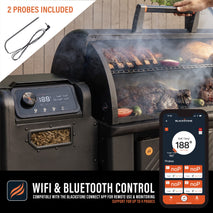
Credit: blackstoneproducts.com
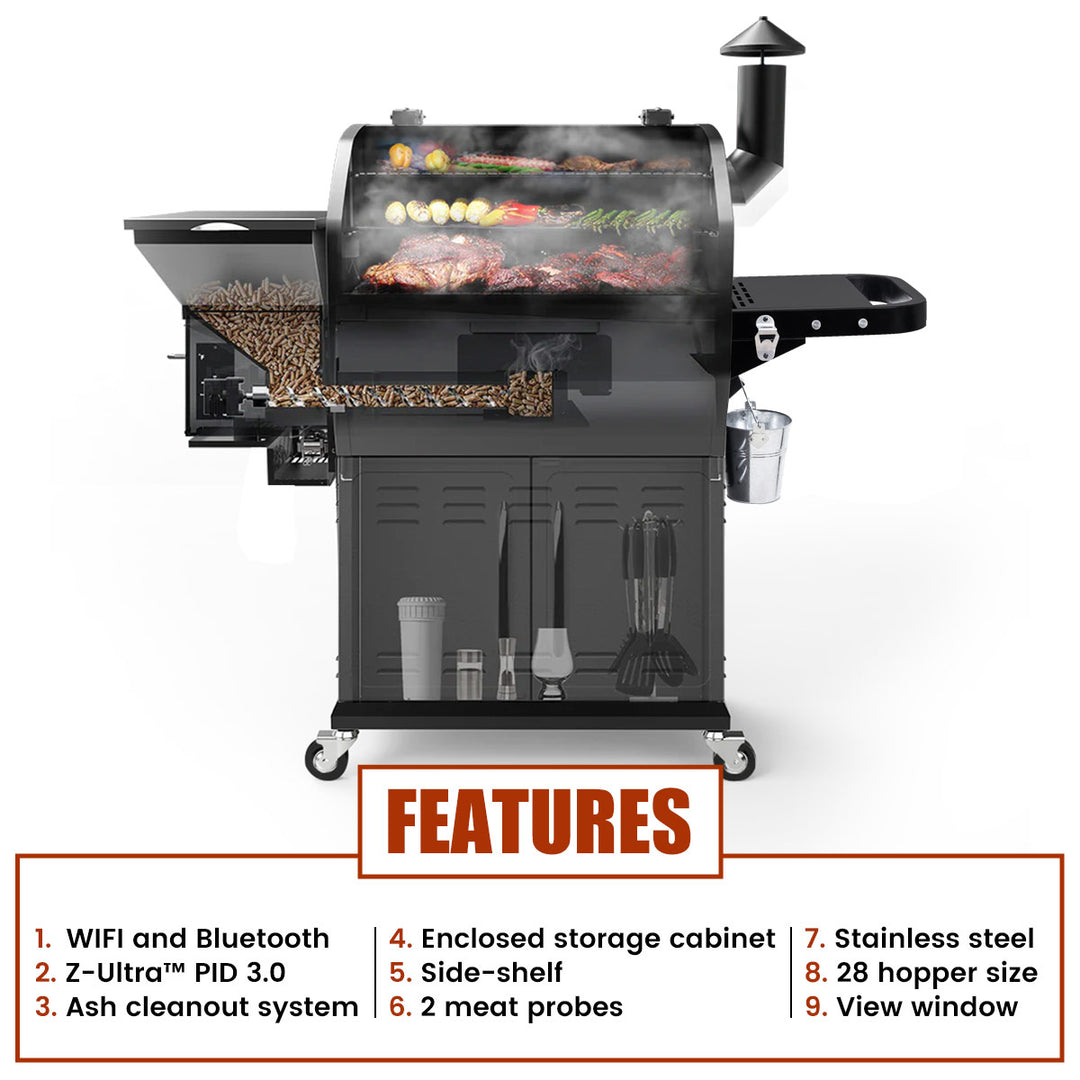
Credit: www.zgrills.com
Frequently Asked Questions
How Do I Test Wifi On My Pellet Grill?
To test wifi, connect your grill to the app. Check if the app shows grill status and controls. Ensure your phone is on the same wifi network as the grill.
Why Is My Pellet Grill Not Connecting To Wifi?
Common issues include weak signal, wrong password, or router settings. Restart your grill and router, then reconnect. Ensure your grill firmware is updated for better connectivity.
Can I Monitor Pellet Grill Remotely Via Wifi?
Yes, most smart pellet grills allow remote monitoring through their app. You can check temperature, adjust settings, and receive alerts from anywhere with internet access.
What Wifi Frequency Do Pellet Grills Support?
Most pellet grills support 2. 4 GHz wifi frequency. This frequency offers better range and compatibility than 5 GHz, which many grills do not support.
Conclusion
Checking wifi connectivity on your pellet grill ensures smooth cooking control. Test your connection regularly for the best experience. Keep your grill’s app updated to avoid issues. A strong wifi signal helps maintain temperature accuracy. Troubleshoot quickly if the grill doesn’t connect.
Enjoy the convenience of remote monitoring and adjustments. Stay connected and cook with confidence every time. Simple steps lead to a better grilling experience.

